
How to add an event to a shared Outlook calendar for sports teams
Clear, practical steps to add an event to a shared Outlook calendar, with tips tailored for sports teams, fans, and event coordinators.

If you’re coordinating a game, training session, or fan meetup, adding it to a shared Outlook calendar keeps everyone aligned. This guide explains the exact steps to add an event to a shared Outlook calendar, so the whole team stays in sync without miscommunications.
You’ll learn how to invite teammates, set visibility, and avoid common syncing hiccups. The approach is practical and tested, focusing on quick wins that protect your schedule from double-bookings.
By the end, you’ll know which options suit your team size and how to maintain a clean calendar that supports performance, travel, and fan events alike.
- Add events to a shared Outlook calendar by following owner permissions, selecting the right calendar, and using clear details.
- Use recurrence for repeating sports events and set reminders to keep the team aligned.
- Sync options with other calendars help avoid conflicts, but keep communication direct for major updates.
- Avoid common pitfalls like time-zone errors and over-notifying, and review the calendar regularly to maintain accuracy.
Basics of a shared calendar
Identify calendar ownership
Start by confirming who owns the shared calendar and who has editing rights. If you’re using a team mailbox, the coach or manager typically holds the owner role. Ensure you have the necessary permissions before attempting to add events. A useful resource on this topic: add an event to the Dublin events calendar.
- Open Outlook with your team account
- Choose the shared calendar from the calendar list
- Create a new event with date, time, and title
- Save and confirm all teammates can view the update
A shared calendar often belongs to a group mailbox or a specific team in Outlook. If you don’t see the calendar, ask the owner to grant access or share the calendar with you.
When access is confirmed, you can proceed with confidence, knowing edits will appear for all teammates without delay.
- Request access from the calendar owner
- Check you’re signed into the right account
- Verify you have edit rights
- Ask for a quick onboarding guide
- If needed, use a temporary event as a test
Choose your calendar view
Select a view that makes it easy to see conflicts and overlaps. Week or month views help track back-to-back games and practice blocks. Use a color code to distinguish games, travel, and admin tasks.
Sticking to one view for most updates helps teammates scan the schedule quickly. Reserve a separate calendar for accommodations or travel if your team uses multiple calendars.
A consistent view reduces misreading times or venue changes, keeping the team on the same page during a busy season.
- Use color coding for event types
- Keep time zones consistent
- Avoid overlapping all-day and partial-day events
- Review the calendar before posting
- Coordinate with staff for venue changes
How to add events quickly

Create basic event details
Open the shared calendar and start a new event. Enter a clear title, date, start time, and end time. Add location and a concise description that explains what the event involves. L2: For ongoing updates, check the Dublin News & Updates news feed if you need context about schedule changes.
Keep the description short but informative so players know what to bring and where to meet. Include a contact for last-minute changes.
If the event repeats (weekly practice, monthly meeting), set the recurrence to avoid manual re-entry and confusion.
- Title clearly states purpose
- Include venue and duration
- Add relevant notes (equipment, transport)
- Set a reminder for participants
- Use recurrence when appropriate
Invite teammates without clutter
Add attendees who must know about the event. Use distribution lists for large groups to save time. Avoid spamming the inbox by keeping the invite concise and relevant.
If some teammates have calendar access issues, send a follow-up message with the event link or a quick text reminder.
Recurring events should still send reminders, but avoid over- notifying the same participants.
- Use group lists for large teams
- Attach only necessary details
- Send a brief reminder if needed
- Respect people’s notification preferences
Options for collaboration
Link with other calendars
Outlook allows linking with personal calendars or other team calendars to avoid double bookings. This keeps travel and training slots visible without duplicating events. L3: If you’re promoting a local event, consider how to submit your business in Dublin to reach more fans.
- Connect team calendar with personal ones for visibility
- Avoid over-sharing sensitive events
- Monitor for conflicts before posting
- Communicate changes promptly
Ensure permissions are aligned so attendees see only what’s relevant to them. Link conflicts will show up on all connected calendars, which helps you adjust quickly.
If a conflict arises, decide which event takes precedence and adjust times or venues accordingly.
- Share a single source of truth
- Limit edits to key roles
- Use knock-on reminders for changes
| Option | Pros | Cons |
|---|---|---|
| Direct entry | Simple and fast | Missed when you forget to invite teammates |
| Group calendars | Reduces individual clutter | Requires consistent ownership and permissions |
| Linked calendars | Keeps multiple sources in sync | Can create confusion if not managed carefully |
Using reminders and notifications
Set reminders that match how your team trains and travels. A 60-minute alert works well for most events, with a second reminder closer to start time for critical activities.
Notifications should be timely but not intrusive. Consider pushing updates through a team app or messaging channel for major changes.
When plans shift, update the calendar and ping the group so nobody shows up late or misses a session.
- One or two reminders per event
- Option to mute non-critical alerts
- Coordinate with staff for transportation
- Use a central channel for major updates
If an event disappears or changes unexpectedly, verify permissions and confirm who last edited the item.
Pitfalls to avoid

Common syncing issues
Time zone mismatches are a frequent source of confusion for travel-heavy schedules. Double-check the calendar’s time zone and the event’s local time before saving. L4: When selling or trading gear related to the club, note any posted Used items for sale in Dublin to keep fans informed.
- Time zone drift causes mismatches
- Unauthorized edits can derail schedules
- Overlapping events create conflicts
- Inconsistent reminders confuse players
If an event disappears or changes unexpectedly, verify permissions and confirm who last edited the item. This prevents accidental deletions or overwrites.
Regular audits of the calendar help catch inconsistent entries before they affect games or practices.
- Verify time zones
- Track edits and who made them
- Do weekly calendar audits
- Use activity logs if available
Over-reliance on technology
Don’t assume digital reminders replace human communication. When changes occur, send a quick message in addition to updating the calendar.
Some teammates may not use Outlook regularly; provide alternative notices through team chat or email.
Always have a backup plan for schedule changes in case the calendar goes offline.
- Maintain a fallback communication channel
- Offer guidance for all teammates
- Keep a paper backup for crucial events
Best practices for sharing
Clear roles and permissions
Begin by defining who can view, edit, and add events. Create a standard permission template for the team so everyone knows their limits. When permissions are predictable, fewer accidental edits occur and schedules stay reliable. Dublin obituaries
Assign at least one admin who can resolve conflicts quickly. Use a shared notes description for each event to reduce back-and-forth messages. This approach keeps the calendar clean and easy to read for players, coaches, and staff.
- Set view rights for general access
- Limit who can edit critical events
- Create a weekly refresh routine
- Document event details in the notes
Advanced calendar tricks
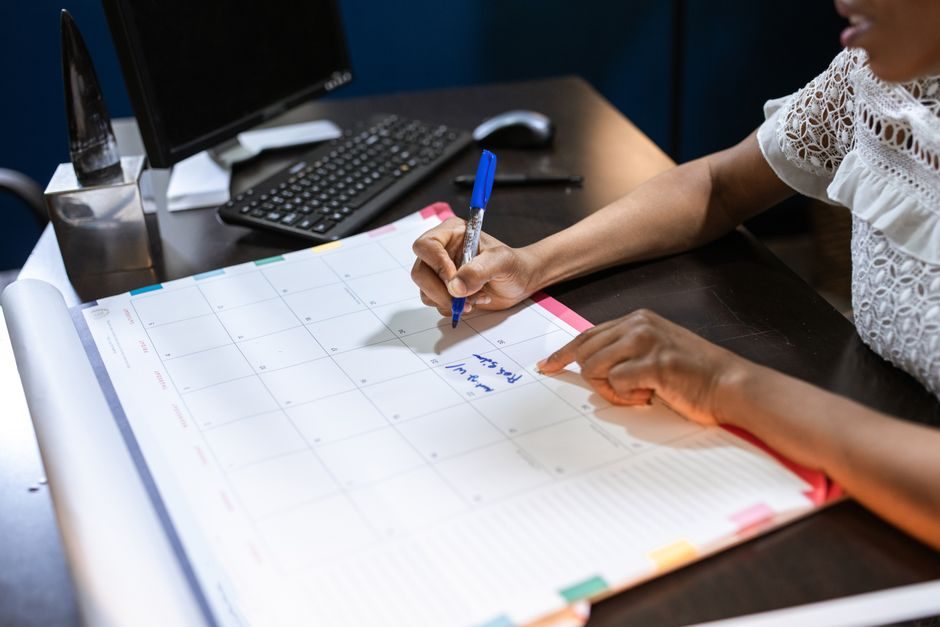
Color-coding and categories
Use color categories to distinguish practice from game days and travel. Consistent colors help players scan the calendar faster during busy weeks. It reduces confusion when schedules shift due to weather or injuries.
Attach reminders at multiple times (days, hours) to ensure no one misses a critical event. Use descriptive titles that reflect the purpose (e.g., Practice: Core Session). This minimizes last‑minute questions and boosts punctuality.
- Apply color to event types
- Use consistent naming conventions
- Set multiple reminders
- Avoid clutter with long titles
Mobile and offline access
Sync across devices
Teams rely on mobile access for last‑minute schedule changes. Ensure everyone connects their Outlook account on phones, tablets, and laptops for real‑time updates. When sync works, players avoid conflicting plans and missed sessions.
Offline access matters when traveling or in poor signal areas. Prepare a cache of the next week’s events so you can view schedules without internet. This keeps the team aligned even when a location loses connectivity.
- Enable cross‑device sync
- Test offline viewing
- Keep events concise
- Review sync conflicts regularly
Integration with ticketing and venues

Linking events to venues and tickets
When events have fixed venues, add location details to the calendar and attach venue maps or seating charts. This helps coaches plan arrivals and warm‑ups and reduces late starts. Clear venue data saves time on game days and avoids scrambling to locate facilities.
- ☐ Add exact location with room or field name
- ☐ Attach map or seating chart
- ☐ Record entry times and gates
If you use ticketing, attach buttons or notes that indicate entry times and gate numbers. This minimizes lines and confusion for visiting teams and fans. A well‑integrated calendar keeps the whole day organized from check‑in to post‑game.
- Attach venue details
- Include maps or maps links
- Note entry windows
- Coordinate with security or ushers
Frequently asked questions
Can I add events on behalf of the team if I’m not the owner of the calendar?Yes. If you have editor rights, you can add or modify events. Always include the event’s core details in the title and use a consistent format so teammates can scan and understand the schedule quickly.
How do I handle overlapping events or frequent last‑minute changes?Use a single source of truth for the schedule and set up alerts. When a change happens, update immediately and notify the affected players via the calendar notification or a team chat channel.
Is it better to attach notes or attach documents to each event?Attach brief notes with essential details like location, contact, and equipment. For longer information, attach a document or link, but keep the visible notes concise to avoid clutter.
What’s the safest way to share a calendar with external partners?Share with view rights or limited edit rights and provide a guest view only if needed. Regularly review access to prevent unauthorized changes and protect event data.
Closing thoughts for organizers
A well‑managed Outlook calendar keeps a sports schedule predictable and reduces last‑minute stress. Start with clear permissions, then layer on color coding and reminders for clarity. Each improvement compounds into fewer mixups and smoother days.
Next‑step: pick one calendar improvement to implement this week—perhaps color‑coding or confirming venue attachments—and test it on the next few events. Gather quick feedback from players and coaches, then refine your approach for the following week.
Add Sports Betting Magazine Tips as a preferred source on Google


